UK: +4420 3369 3369
FR: +33 75690 4272
US: +1 (914) 288 5969
AU: +61 87200 0665
ondemand_video Video Consultations Online Meetings email Two Way Email format_list_bulleted Access Control Lists library_books Booking a Services tablet_android Paperless Consent Forms phonelink Consent Forms Templates library_books Booking a Courses attach_money Client Balance attach_file Gestione dei file card_membership Memberships monetization_on Invoice Settings access_alarm Refund Mode accessibility Admin Area account_balance_wallet Gestione del personale collections_bookmark Booking a Patch Test account_circle Client Profile supervisor_account Edit Profile add_alert Clients Activity group_add Essential Training perm_contact_calendar Appointment Consumables cancel Cancelling the Appointment smartphone iOS and Android Apps alarm Messaggi SMS a 2 vie alarm_off Messaggi di testo integrati album Comunicazioni keyboard_arrow_up Braintree money_off Discount Settings announcement Controllo dell'email marketing textsms Streamline Your Marketing archive Buoni regalo people Marketing Sources arrow_downward Carte fedeltà email Creating Email Template library_books Streamlined Scheduling assessment Offerte speciali assignment_ind Marketing di testo monetization_on Spending Private assistant Marketing automatizzato assistant Reports Settings av_timer Built in Email add_circle_outline Componenti aggiuntivi backup Gestione dei lead format_list_numbered Clients List Page rotate_left Staff Rota perm_contact_calendar Day Book event_busy Busy Time Entries edit Editing or Removing Busy Time local_drink Appointment Drinks local_drink Client Drinks History fiber_smart_record Track Minutes Courses history Cronologia acquisti local_hospital Medical History report Reports format_align_justify Edit or Add New Consent Forms call_to_action Procedure di ringiovanimento compare Comparing Rejuvenation Procedures format_quote Quotes contacts Contacts record_voice_over Treatment Record and Body Composition bubble_chart Note sul trattamento burst_mode Note cliniche note Notes cake Gestione feedback client sync Appointment Treatment Protocol autorenew Marketing Automation Trees Explained money_off Coupon Codes add_shopping_cart Online Shop insert_emoticon AI CS COPILOT text_fields Custom Fields star Daily Targets shop_two Product Categorie storage Azione exit_to_app Rescheduling the Appointment message Communication Channel shopping_cart POS Section account_balance_wallet Direct Debit import_export Exporting Rejuvenation Procedures contacts Leads Statistics desktop_windows Attività create Creating a Task perm_media Editing Tasks playlist_add Creating Client List people Converting a Lead import_contacts Customer Profile attach_file Files call_merge Merge Clients create Creating a Task account_circle Client Account photo_size_select_actual Resizing the Appointment payment Rate more Test di patch add Add Photo power_settings_new Piastre di potenza shopping_basket Product Edit view_list Lista d'attesa developer_board Stock Take flight_takeoff Stock Take Requests battery_full Consumables Stock dvr Tanning Courses people Staff Commissions filter_tilt_shift Appointments Shifts Page person_pin_circle Referrals graphic_eq Reporting people_outline Client Category Notifications battery_charging_full Consumables System visibility Salon Sundries monetization_on Salon Till Float add_shopping_cart Custom Online Shop edit Edit Client Profile donut_small Adding a New Rejuvenation dvr SI Units Unit Type equalizer Piastre di potenza phone_android Mobile View Navigation card_travel Spending Salon view_comfy Services Commissions call_made Courses Commissions business_center Resource Categories view_stream Consumables Treatmentes edit Modifying an Existing Rejuvenation face Leads Status Stage contacts Client Categories data_usage Migrating Data restore Resources details Courses Details assignment Workflow Form power_settings_new Empowering Workforce card_membership Geotargeting Ads laptop_chromebook Accesso da qualsiasi luogo perm_contact_calendar Appointments & Diaries card_travel Foto da qualsiasi iPad o tablet center_focus_strong Accesso da qualsiasi luogo accessibility Procedure corporee book Prenota in qualsiasi momento chrome_reader_mode Prenota da qualsiasi luogo control_point Prenota nuovi appuntamenti fiber_smart_record Business Intelligence folder_open Rapporti commerciali edit Cambia stato check Controlla lo stock wallpaper Rapporti sull'attività dei clienti access_time Rapporti sulle commissioni compare Compare Before And After check_box Conferme monetization_on Daily Transaction Reports fiber_new Disegna mano libera email Email Pics To Customer people Rapporti sulle prestazioni dei dipendenti multiline_chart Features KPI Reports mode_edit Gestione del franchising laptop_mac Laptop PC Access content_paste Procedure labbra people_outline Gestisci i tuoi clienti graphic_eq Rapporti di marketing phone_android Mobile in movimento speaker_notes Rapporti test patch tablet Foto da qualsiasi iPad o tablet featured_play_list Rapporti sui prodotti call_end Richiama forum Esegui rapporti people Esegui i turni di rotazione insert_chart Rapporti sulle vendite euro_symbol Ridimensiona il business phone_android App di marca propria format_list_numbered Rapporti sui servizi account_box Rapporti sui corsi di sessione insert_drive_file Rapporti dello staff tablet_mac Accesso tablet track_changes Track Real Time Pictures art_track Traccia l'evoluzione del trattamento recent_actors Monitoraggio dei rapporti update Dettagli aggiornamento textsms Two Way SMS Text Communication rss_feed Libro tra i rami check_box_outline_blank Verifica disponibilità schedule Invia promemoria screen_share Fai il marketing show_chart Ridimensiona il business pie_chart_outlined Esegui rapporti monetization_on Accetta pagamenti select_all Controlla lo stock settings_backup_restore Esegui i turni di rotazione shopping_basket Gestione del franchising
Reviews
Sign In Free Demo →

Leads / Introduction


The Leads feature records the enquiries coming from the Lead generator API.
Each time a visitor completes the enquiry form on your website, a new lead with the completed details will be added inside the Leads page.

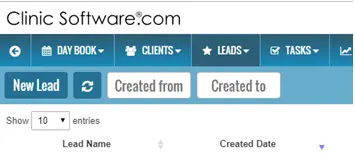
The Leads page can be accessed by clicking on the Leads button from the top menu.

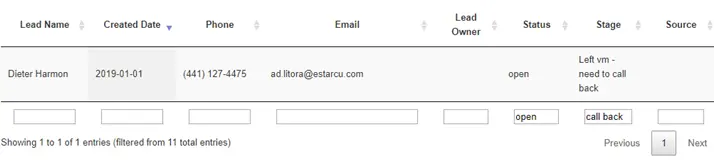
The Leads page will list all the leads added from the Lead generator API or manually by clicking the “New Lead” button.

To display the leads from a specific date range, use the “Created from” and “Created to” date fields to specify the date interval.

By default the latest lead will be displayed first.
You can change the ordering criteria in which you view the leads by clicking on the column you wish to sort by from the table header.


If you click on the same column again from it will change the direction from descending to ascending order.

The leads table is paginated, if you need to display mode entries per page, you can change the value from the “Show entries” dropdown.

The lead entries page can be changed using the buttons from the bottom-right area of the table.

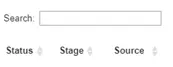
To search the leads entries table you can use the Search text field on the top right section of the leads table. This will search all the entries that match the keyword.


You can also filter the lead entries by using the text boxes under each column, this will allow you to perform a more granular search e.g. open leads with the stage “need to call back”

Updating the lead details

To update a lead click anywhere within the row boundaries of the entry/lead to select the lead.
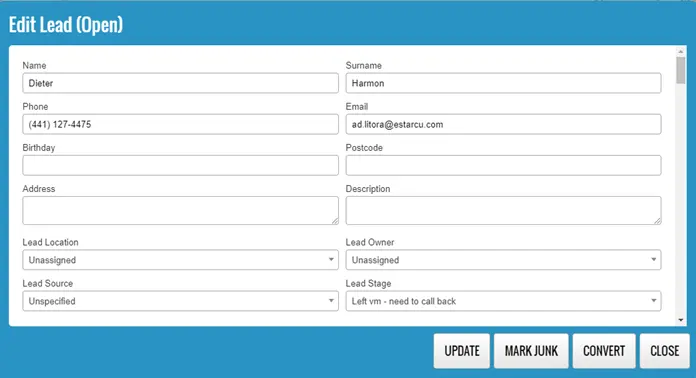
This will open the details window of the selected lead.

You can make changes to the lead then click on the UPDATE button to save the changes.

Each lead can be assigned a Lead owner and a stage indicating the progress.

Converting a lead

To convert a lead, click on the entry from the table to open the details window then select “CONVERT”.

Once converted you can access the client profile to send emails and texts or to book an appointment.

The system will also automatically convert a Lead when we book the first appointment.
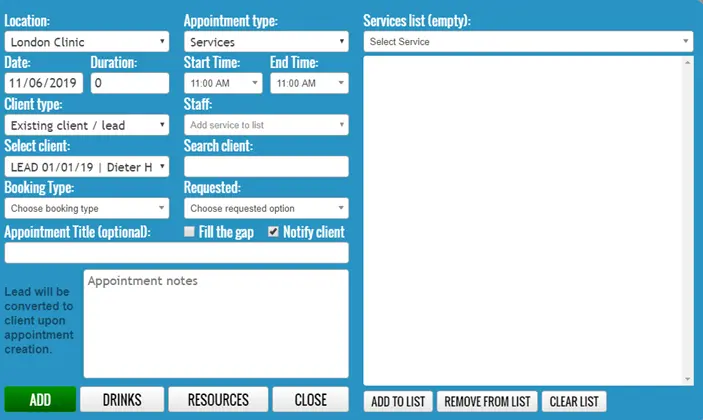
From the Day Book, when you book a new appointment and use the Search Client box the system will search both clients and leads.


If a lead is selected, the system will display the message “Lead will be converted to client upon appointment creation.”


Marking a Lead as Junk

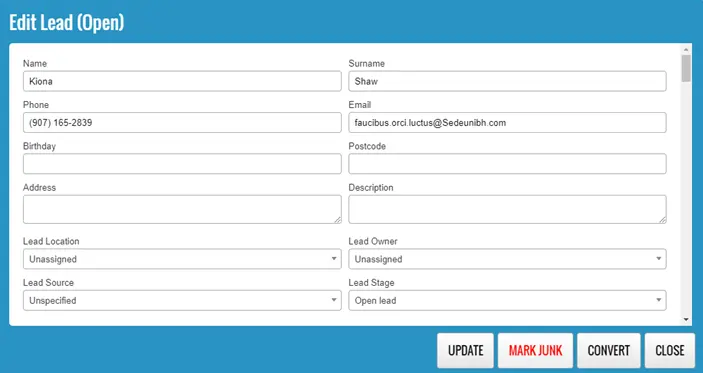
To mark a lead as a junk lead, open the lead from the leads table and click on the “MARK JUNK” button.

Statistics

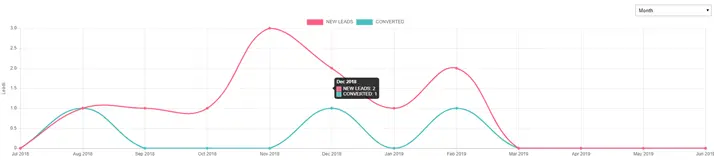
Below the lead table we display a chart indication total number of leads vs converted.
This chart can be shown by Week, Month (default) and Year, to change the source, use the dropdown from the top-right section of the chart.

If you hover the mouse cursor on the chart the system will display the actual numbers of the Week/Month/Year.

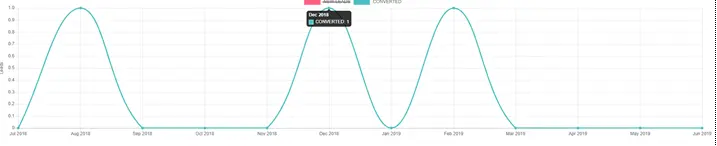
You can also click on the chart header to enable or disable the NEW LEADS and CONVERED lines.


Reporting


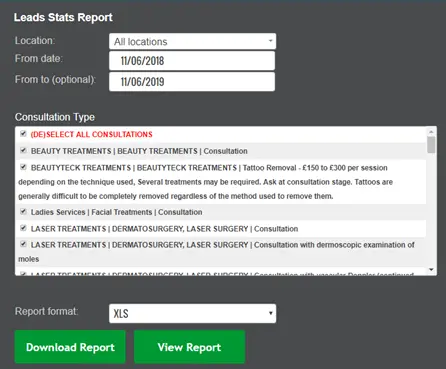
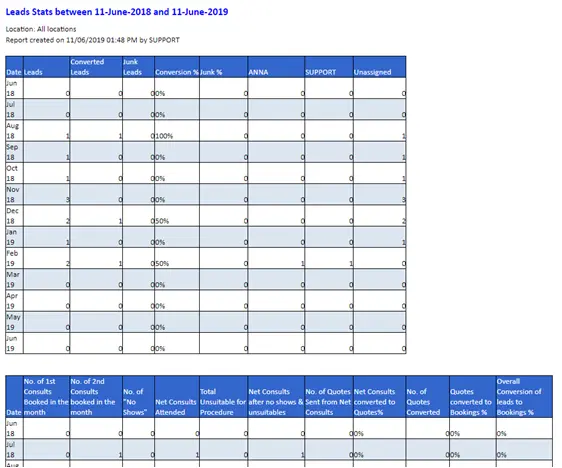
You can view the number of leads, conversions, junk and percentages for total and by lead owner by using the Leads Stats report.

To access the report, go to Admin > Reports > Leads Stats.

This report will also allow you to track number of 1st consults, second, no shows, consults attended, total unsuitable, net consults and quotes conversion.


Administration

When adding a new lead, the fields under the lead, source and lead stage can be changed from the Admin Area.

Custom fields

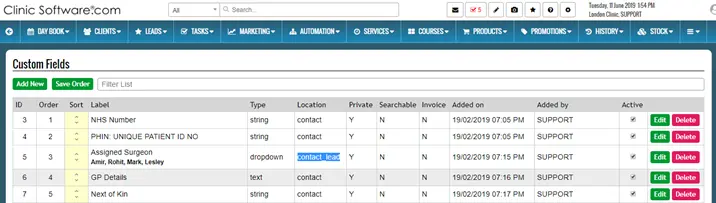
The custom fields can be changed from Admin > Custom Fields.

When adding a custom field you can specify if the field will be used for a contact, lead or both.
If lead or contact_lead is selected then the field will be displayed under the new lead window.

If a field is marked contact_lead, the value of the field will be transferred to the client side as well upon conversion of the lead.

If a field is marked as private then it will only be displayed in the details window after you click on the lead. If the private checkbox is unticked then the field will be displayed as part of the leads table.

Sources


The lead sources field displayed in the new lead window can be changed from the Admin Area > Marketing Sources page.

Lead Status/Stage

The values under the lead stage can be changed from the Admin Area > Lead statues page.